
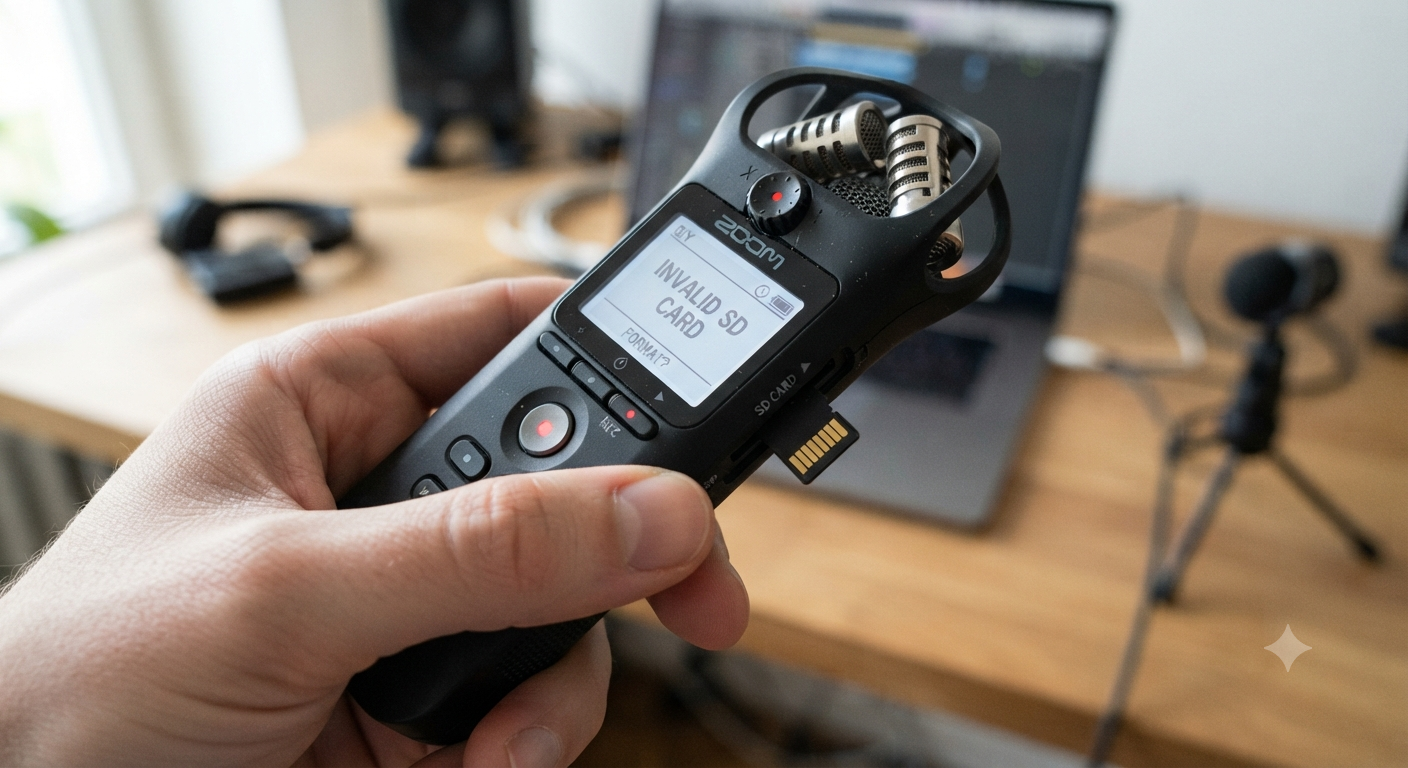
In a previous post, we tackled the “Invalid SD Card” error on the Zoom H1n. We covered the basics of why it happens and how to get your device back on track. But for those of us documenting oral histories, the real panic doesn’t come from a glitchy piece of hardware—it comes from the fear of losing the voice, the emotion, and the personal story that was captured in that session.
If you are staring at an “Invalid SD Card” message and you have a recording on there that you desperately need to save, this guide is for you. So, let’s get into it.
Step 1: The “Digital Quarantine”
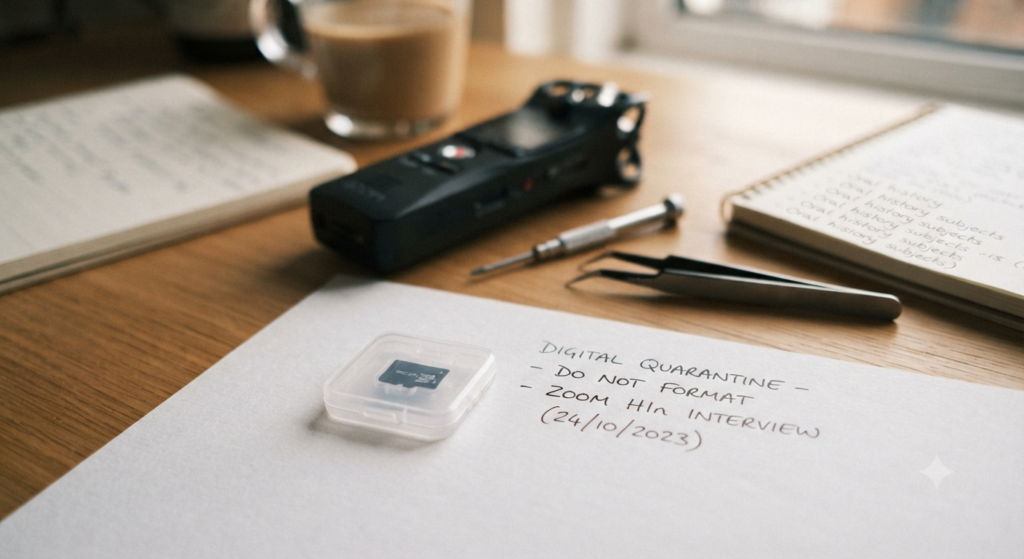
The moment you see the error, stop recording immediately. Do not try to record over the card, and do not hit “Format” under any circumstances. Every time you attempt to write new data to a failing card, you risk overwriting the very files you are trying to rescue. Remove the card, put it in a safe, static-free case, and don’t touch it until you have the right tools, such as a reliable, dedicated USB card reader to bypass your device’s interface and data recovery software (like Recuva for Windows or Disk Drill for Mac/Windows) to help you safely scan for and salvage your audio files.
Step 2: Use a Dedicated Card Reader
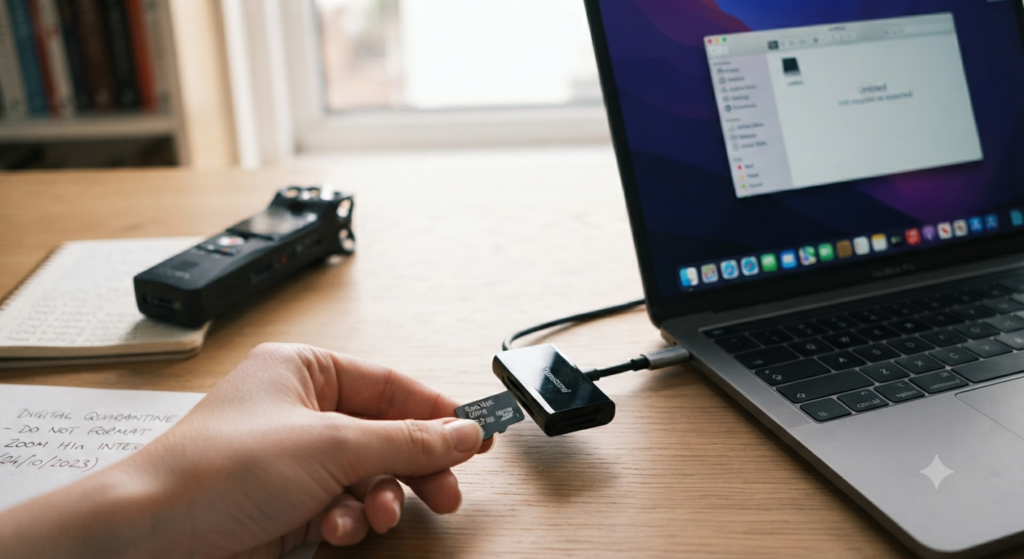
Don’t connect your Zoom H1n directly to your computer to troubleshoot a corrupt card. Your recorder’s internal software is what’s flagging the card as “invalid.” Instead, take the microSD card out and use a reliable, dedicated USB card reader. This bypasses the Zoom’s internal interface and allows your computer to see the card as a raw storage device.
Step 3: Software Data Recovery
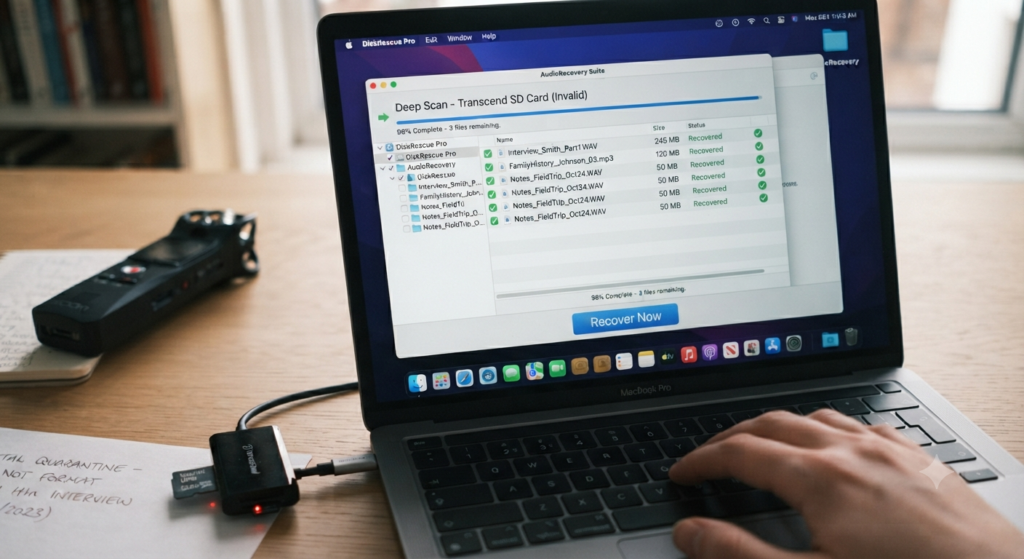
If your computer doesn’t recognize the card, or it tells you the card needs to be formatted (don’t do it!), your file system structure is likely damaged. This is where specialized data recovery software comes in.
- Try Recuva (Windows) or Disk Drill (Mac/Windows): These tools are designed to look past file system errors and “scavenge” for recoverable audio files.
- The Process: Connect the card reader, open the recovery software, and point it toward the drive letter of your SD card. Run a “Deep Scan.” Even if the files don’t have their original names (they might show up as FILE001.wav), the software can often pull the audio data off the card and save it to your hard drive.
Step 4: The “Last Resort” Professional Approach
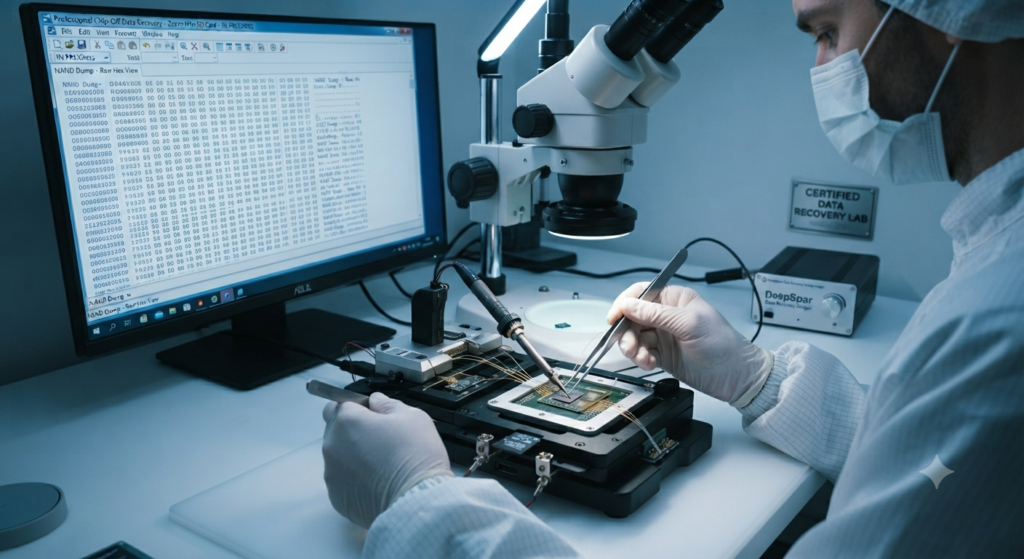
If software cannot see the card, there may be physical corruption or controller failure. If the oral history is irreplaceable—perhaps the only recording of a family elder’s life story—do not attempt further DIY fixes. Professional data recovery services have the equipment to bypass failed controllers and read the memory chips directly. It is an investment, but for historical preservation, it is often worth it.
Lessons Learned: Protecting Your Future Interviews
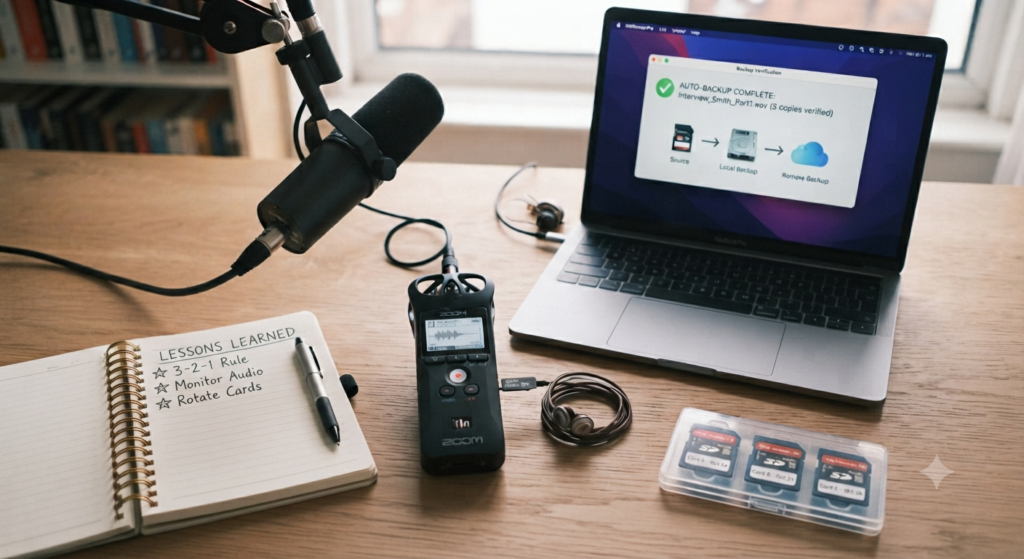
After you’ve retrieved your data (or accepted the loss), take a moment to adjust your workflow to ensure it never happens again.
- The 3-2-1 Backup Rule: Always keep 3 copies of your data, on 2 different types of media, with 1 copy stored off-site (like cloud storage). Once your recording is off the SD card, move it to a hard drive and back it up to a cloud service immediately.
- Listen as You Go: During a break in the interview, always listen to the last 30 seconds of your recording through headphones. This confirms the card is writing data correctly before you continue for another hour.
- Swap Cards Regularly: Don’t use the same SD card for years. Think of your SD cards as “consumables” like printer ink or batteries. Swap them out for new, high-quality cards every 12–18 months if you are a frequent user.
Oral history is a fragile bridge between the past and the present. Technical hurdles are an unfortunate part of the journey, but with a cool head and the right recovery steps, you can ensure that those precious stories don’t just survive—they endure.
Have you ever successfully recovered an audio file from a corrupt card? What software or strategy worked for you? Share your experience in the comments below to help a fellow oral historian save their next project!
Disclaimer: As an oral historian, I am dedicated to preserving stories through technology. While I share these technical tips based on personal experience, I am not a certified IT specialist or data recovery engineer. Always prioritize backing up your data, and when in doubt, consult a professional data recovery expert for highly sensitive or irreplaceable files.